How to create a Guest Pre-Approval on Mygate?
The Guest Pre-Approval feature allows you to pre-authorize guests who are visiting your flat. This helps make their entry faster and smoother, as the visitor can enter the society without requiring you to provide approval at the time of arrival.
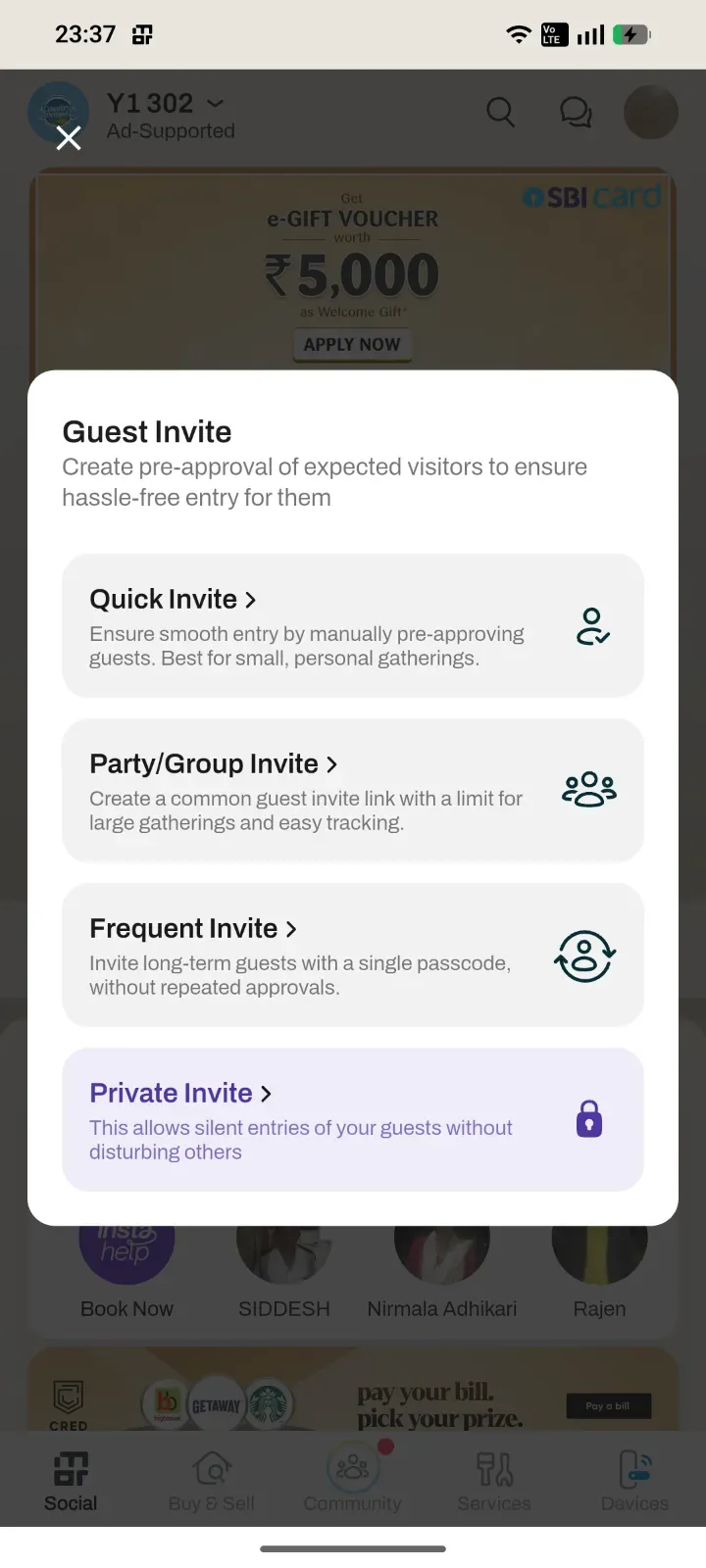
Mygate offers three ways to create a Guest Pre-Approval, depending on your requirement:
1. Quick Invite
Use Quick Invite when you want to create a pre-approval for an individual guest.
You can create a one-time invite or a frequent invite, depending on how often the guest is expected to visit.
To create a Quick Invite:
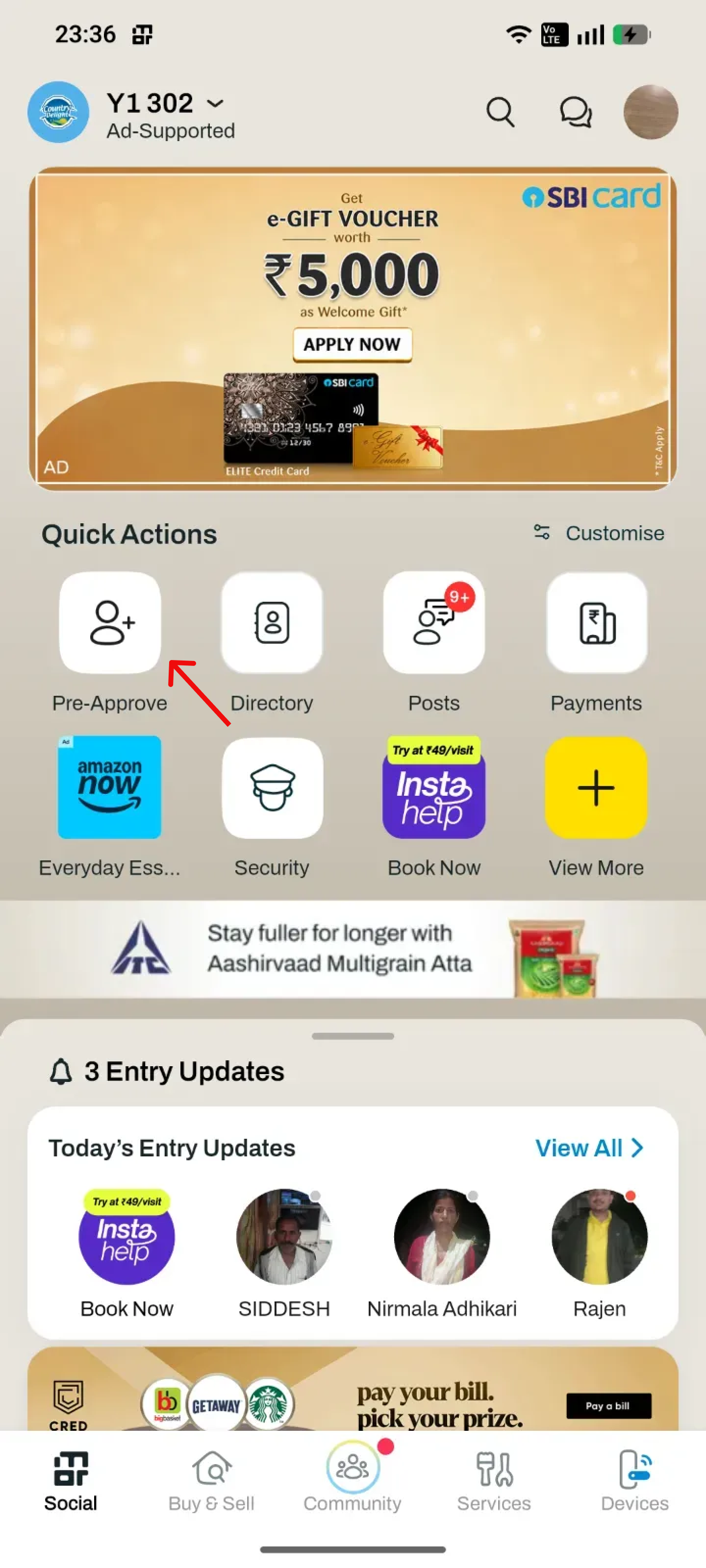
Open the Mygate app and tap Pre-Approve on the home screen.
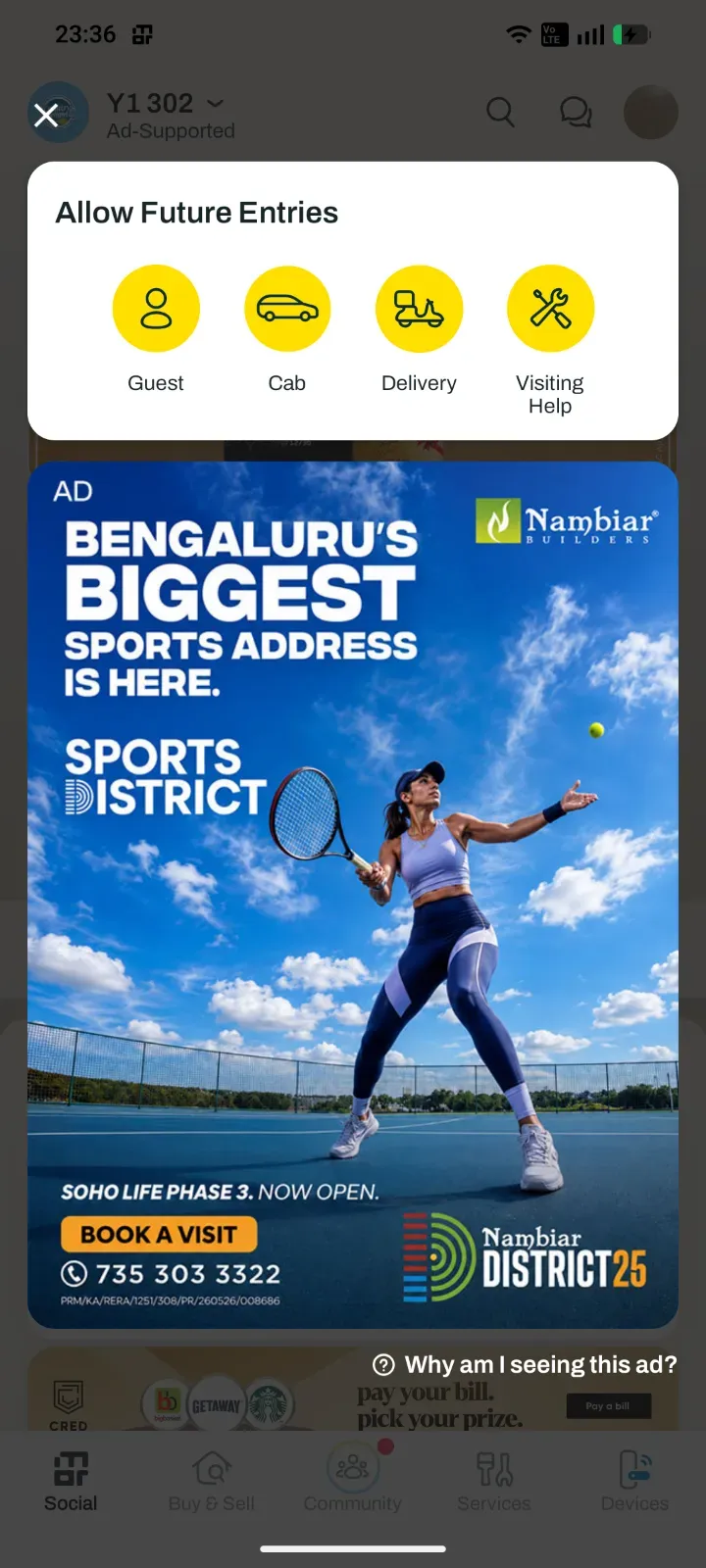
Select Guest.
Select Quick Invite.
Add the guest's phone number and contact details.
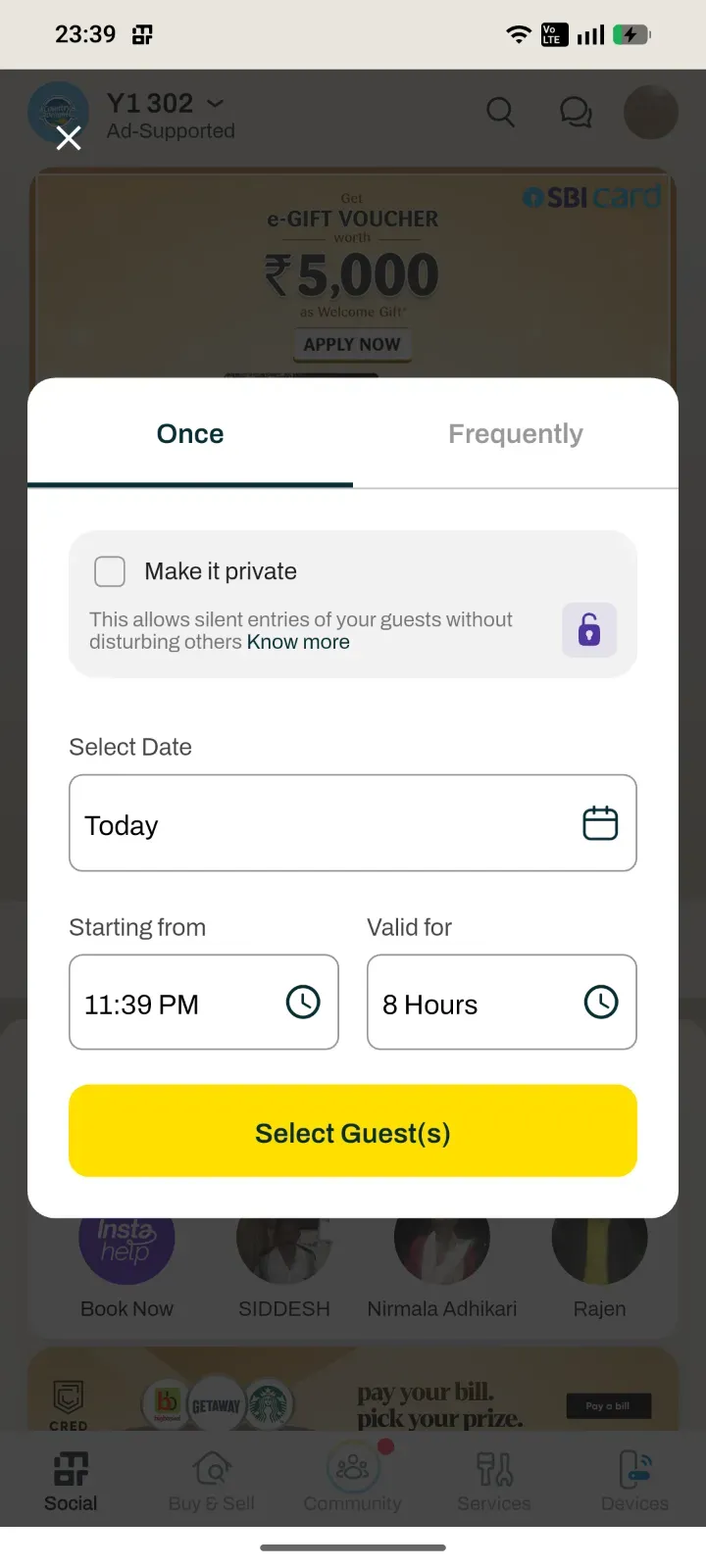
Select the period for which the pre-approval should be valid.
Choose whether the invite is Once or Frequent.
Create the invite.
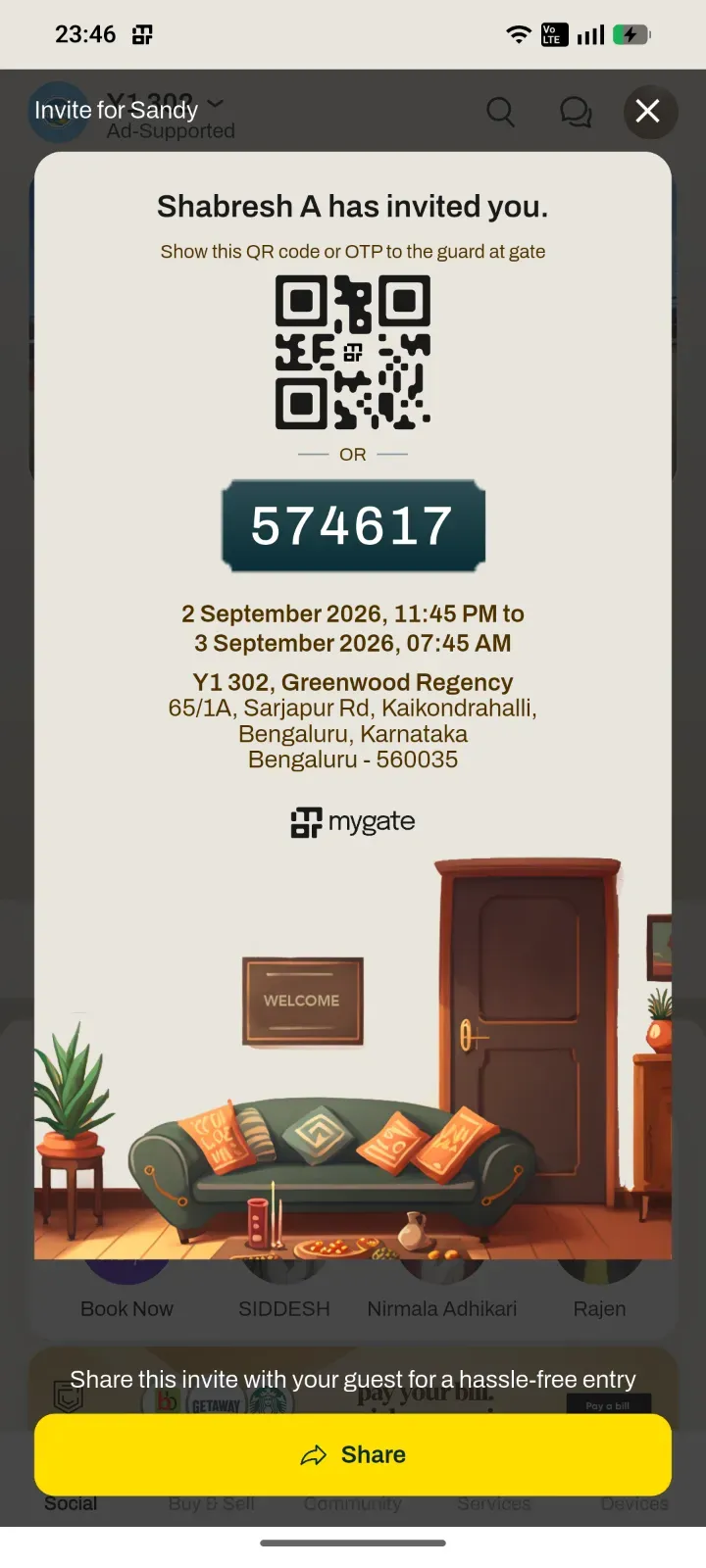
Once the invite is created, an invitation card with a six-digit passcode will be generated.
Share the invitation card with your guest. When the guest arrives at the society, they need to share the six-digit passcode with the guard at the gate. The guard will validate the passcode and allow the guest to enter the society.
Why is the guest's phone number required?
The guest's contact details are required to maintain the visitor record for the society.
2. Party/Group Invite
Use a Party/Group Invite when you are expecting multiple guests, such as during a festival, birthday, housewarming, or other gatherings.
Instead of creating a separate pre-approval for every guest, you can create one group invite link and share it with everyone you have invited.
You can also set the maximum number of guests who can use the invite. A single group invite can be used for up to 50 guests.
How does a Party/Group Invite work?
Create a Party/Group Invite from the Guest Pre-Approval section.
Set the maximum number of guests you want to invite.
Share the generated invite link with your guests.
Each guest opens the link and enters their name and phone number.
The guest generates a passcode for themselves.
Once a party invite is created, you can track and manage your guests through the pinned icon in the visitor carousel for quick access to event details.
The guest shares the passcode with the guard when they arrive at the society.
The guard validates the passcode and allows the guest to enter.
This is particularly useful when you are expecting a large number of guests and don't want to create individual invites for everyone.
3. Private Invite
Use Private Invite when you want to invite a guest to your flat without notifying or disturbing the other members of your flat.
For example, you can use this option when you are planning a surprise birthday party or inviting friends over and want to keep the visit private.
To create a Private Invite:
Open the MyGate app and tap Pre-Approve on the home screen.
Select Guest.
Select Private Invite.
Enter the guest's phone number and contact details.
Select the date and time for which the invite should be valid.
Create the invite.
An invitation card with a six-digit passcode will be generated.
Share the invitation card with your guest.
When the guest arrives, they need to share the six-digit passcode with the guard at the gate.
The guard will validate the passcode and allow the guest to enter the society.
The Private Invite is designed to keep the guest visit private from other members of your flat while still allowing the society's security team to verify and manage the entry.